The HA Cluster Configuration Guide for Oracle Cloud Infrastructure(Windows) is intended for administrators who want to build a cluster system, and for system engineers and maintenance personnel who provide user support.
The software and setup examples introduced in this guide are for reference only, and the software is not guaranteed to run.
This guide contains product- and service-related information (e.g., screenshots) collected at the time of writing this guide. For the latest information, which may be different from the content in this guide, refer to corresponding websites and manuals.
This guide is intended for system engineers and administrators who want to build, operate, and maintain a cluster system. Instructions for designing, installing, and configuring a cluster system with EXPRESSCLUSTER are covered in this guide.
This guide is intended for system administrators. The guide covers topics such as how to operate EXPRESSCLUSTER, function of each module and troubleshooting. The guide is supplement to the Installation and Configuration Guide.
This guide is intended for administrators and for system administrators who want to build, operate, and maintain EXPRESSCLUSTER-based cluster systems. The guide describes maintenance-related topics for EXPRESSCLUSTER.
This guide describes how to create an HA cluster based on EXPRESSCLUSTER X (hereafter described as EXPRESSCLUSTER) on a cloud service of Oracle Cloud Infrastructure (hereafter described as OCI).
OCI allows virtual machines to be HA-clustered by using regions or availability domains, thus enhancing the operational availability.
Regions
OCI allows each node to be deployed in physical or logical units called a region (e.g., Tokyo).
It is possible to build all nodes in a single region. However, in such a case, a network failure or a natural disaster can cause all nodes to go down, discontinuing the operation.
To increase availability, distribute nodes to multiple regions.
Availability domains
OCI allows each node to be deployed in a logical group called an availability domain.
Locating each node in a different availability domain minimizes the impact of planned OCI maintenance or unplanned maintenance due to a physical hardware failure.
For details on regions and availability domains, see the following website:
This guide assumes HA clusters using a load balancer (a unidirectional standby cluster).
The following table describes EXPRESSCLUSTER resources to be selected and required OCI services for the HA cluster:
Purpose
EXPRESSCLUSTER resource to be selected
Required OCI services
Accessing from a client by using a virtual IP address (private IP address)
Oracle Cloud virtual IP resource
Private load balancer
Accessing from a client by using a virtual IP address (global IP address)
Oracle Cloud virtual IP resource
Public load balancer
HA clusters using a load balancer
A client application can connect a virtual machine in the OCI environment to a node that constitutes a cluster, by using a virtual IP (VIP) address.
Using the VIP address eliminates the need for clients to be aware of switching between the virtual machines even after a failover or a group migration occurs.
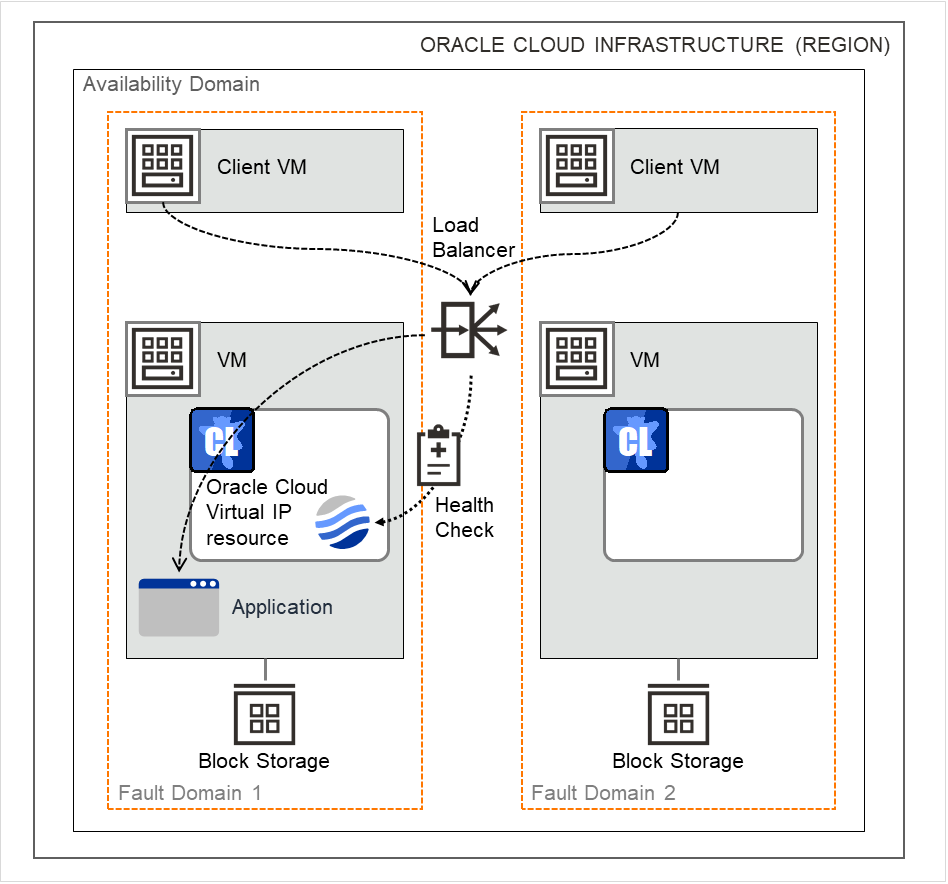
For a private load balancer, an HA cluster built in the OCI environment in Fig. 2.1 HA cluster using a private load balancer is accessed by specifying the VIP address. This VIP address is a private IP address assigned to the OCI load balancer.
Fig. 2.1 HA cluster using a private load balancer
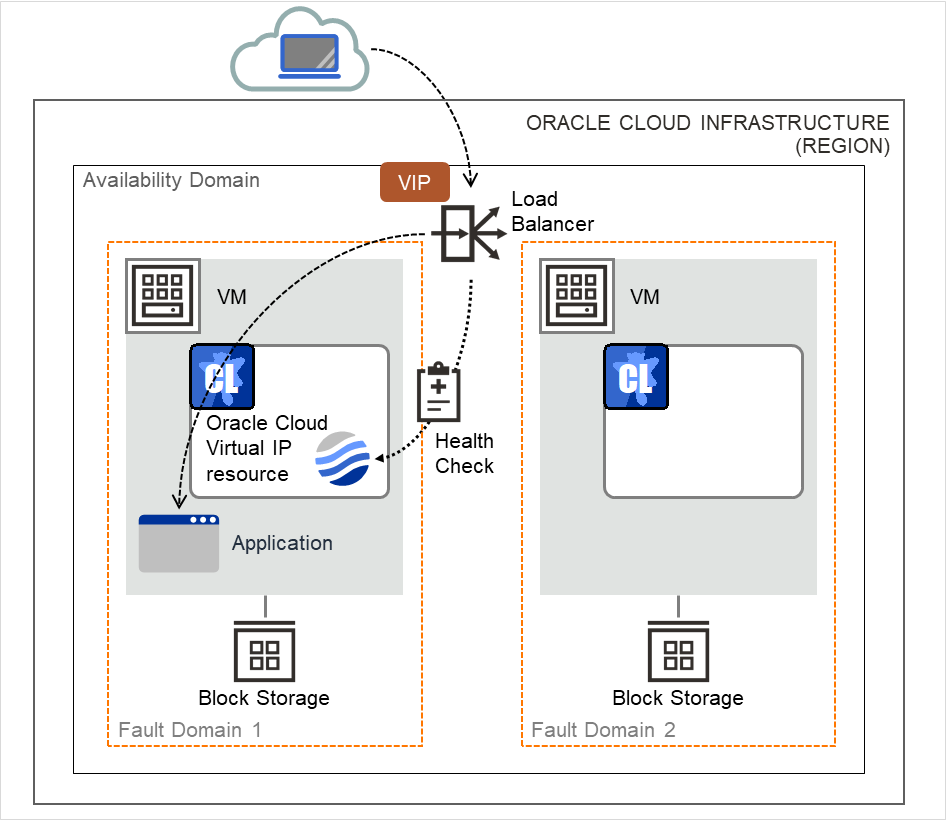
For a public load balancer, an HA cluster built in the OCI environment in Fig. 2.2 HA cluster using a public load balancer is accessed by specifying the VIP address. This VIP address is a global IP address assigned to the OCI load balancer.
The active node and the standby node of a cluster are switched through a health check by the OCI load balancer. The health check can be performed through a port provided by the Oracle Cloud virtual IP resource.
The following table describes the EXPRESSCLUSTER resources and monitor resources required for an HA cluster configuration using the load balancer:
Resource or monitor resource type
Description
Setting
Oracle Cloud virtual IP resource
Provides a mechanism to wait for the alive monitoring by a load balancer on a specific port of a node where operations are running (wait for an access to the health-check port).
Activating the Oracle Cloud virtual IP resource starts the control process on standby for the alive monitoring by the OCI load balancer.
Deactivating the Oracle Cloud virtual IP resource stops the control process on standby for the alive monitoring.
Required
Oracle Cloud virtual IP monitor resource
Performs the alive monitoring of the control process, which starts upon the activation of the Oracle Cloud virtual IP resource, for a node where the Oracle Cloud virtual IP resource is running.
Required
Oracle Cloud load balance monitor resource
Monitors whether the same number as the health-check port number has already been used, for a node where an Oracle Cloud virtual IP resource has not been activated.
Required
Other resources and monitor resources
Depends on the configuration of applications, such as a mirror disk or a shared disk, which are used in an HA cluster.
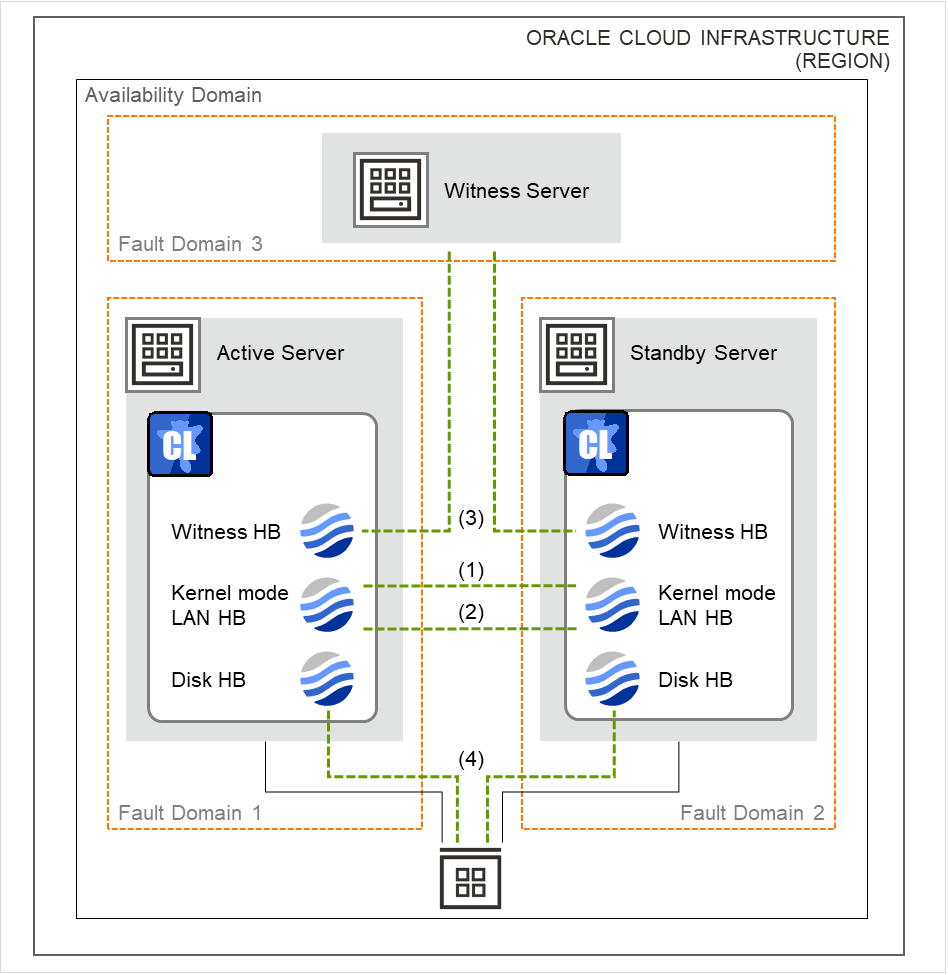
Virtual machines constituting an HA cluster mutually perform alive monitoring through a heartbeat communication.
If the virtual machines reside in different subnets, an interruption of the heartbeat causes an undesirable event such as a service starting more than once.
To prevent double startup of the service, it is necessary to identify whether other virtual machines went down or whether the applicable virtual machine was isolated from a network (network partitioning: NP).
The network partition resolution feature (NP resolution) uses a ping command to be sent to a device (access destination) that is always activated and can respond to the ping command etc. If there is no reply to the ping command, it is determined that the device entered the NP status and the specified action (such as a warning, recovery action, or server shutdown) is executed.
For details on the configurations of the heartbeat and NP resolution, refer to the following.
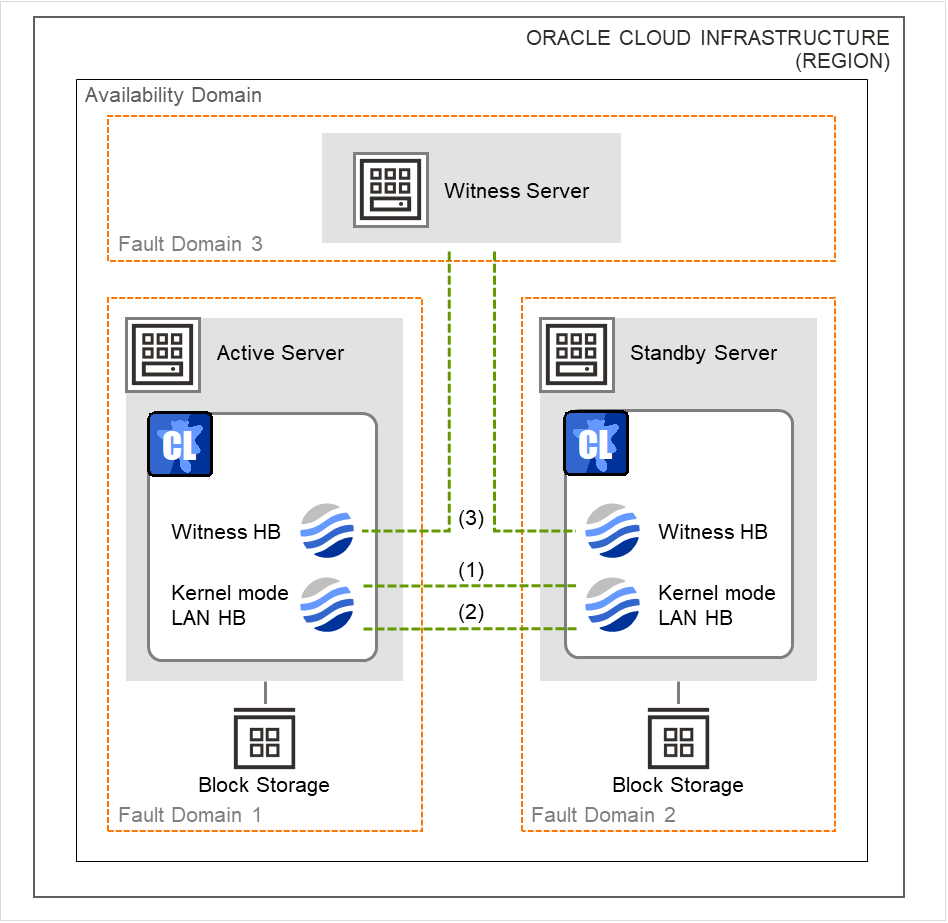
The following heartbeat and NP resolution types correspond to the figures below:
Heartbeat or NP resolution type
Type
(1)
Kernel mode LAN heartbeat resource
(2)
Kernel mode LAN heartbeat resource
(3)
Witness heartbeat resource
HTTP network partition resolution resource
(4)
DISK network partition resolution resource
Heartbeat and NP resolution configuration (mirror disk type cluster)
Fig. 2.3 Heartbeat and NP resolution configuration (mirror disk type cluster)
Heartbeat and NP resolution configuration (shared disk type cluster)
Fig. 2.4 Heartbeat and NP resolution configuration (shared disk type cluster)
Using the Witness heartbeat resource allows the aliveness of the other server to be confirmed based on the information on an access to the Witness server.
With the Witness heartbeat resource in combination with the HTTP network partition resolution resource, when a failure occurs in all network channels (heartbeat) and network partitioning occurs, emergency shutdown takes place to protect data.
The target and method of NP resolution needs to be individually considered, in accordance with the locations of clients accessing the cluster system and with the conditions for connecting to an on-premise environment (e.g. using a leased line).
For details on the heartbeat resource and NP resolution, refer to the following:
The following table describes the functional differences of EXPRESSCLUSTER between on-premises and OCI. "✓" indicates that the relevant function can be used and "n/a" indicates that the relevant function cannot be used.
Function
On-premise
OCI
Creating a shared disk type cluster
✓
✓
Creating a mirror disk type cluster
✓
✓
Using the management group
✓
n/a
Using the floating IP resource
✓
n/a
Using the virtual IP resource
✓
n/a
Using the virtual computer name resource
✓
n/a
Using an Oracle Cloud virtual IP resource
n/a
✓
Using an Oracle Cloud DNS resource
n/a
✓
There is no difference in the procedure for creating a cluster between an on-premise environment and an OCI environment except that OCI needs to be configured in advance.
This guide introduces the procedure for creating a two-node unidirectional standby cluster in OCI using EXPRESSCLUSTER.
An HA cluster to be created is accessible from clients in the same virtual cloud network (hereafter described as VCN) in OCI.
This procedure is intended to create a mirror disk type configuration in which Server1 serves as the active server.
The following tables describe the parameters that do not have default values and the parameters whose values have been changed from the default values.
OCI settings (common to each instance)
Setting item
Setting value
VCN settings
Name
test-vcn
Load balancer settings
Load balancer name
test-loadbalancer
Visibility type
Private / public (*)
Virtual cloud network
test-vcn
Load balancer settings (backend set settings)
Added backend: name
server1, server2
Added backend: port
8080 (the number of the port through which the application is available: cluster side)
Health check policy: protocol
TCP
Health check policy: port
12345
Health check policy: interval (in milliseconds)
5000
Load balancer settings (listener settings)
Traffic type
TCP
Port through which a listener monitors
80 (the number of the port through which the application is available: client side)
(*) Select Private when using a private load balancer, and Public when using a public load balancer.
OCI settings (individually configured for each instance)
Setting item
Setting value
server1
server2
witness-server
Compute instance settings
Instance name
server1
server2
witness-server
Availability domain
LhRE:AP-TOKYO-1-AD-1
LhRE:AP-TOKYO-1-AD-1
LhRE:AP-TOKYO-1-AD-1
Instance type
Virtual machine
Virtual machine
Virtual machine
Virtual cloud network
test-vcn
test-vcn
test-vcn
Fault domain
FAULT-DOMAIN-1
FAULT-DOMAIN-2
FAULT-DOMAIN-3
Block volume settings
Name
server1-datadisk-0
server2-datadisk-0
-
Availability domain
LhRE:AP-TOKYO-1-AD-1
LhRE:AP-TOKYO-1-AD-1
-
Network settings
Private IP address
10.0.0.2
10.0.0.3
10.0.0.4
Private IP address
10.0.1.2
10.0.1.3
-
(*) Public IP address
140.238.54.236
158.101.136.208
164.92.39.211
(*) Set when using a public load balancer
EXPRESSCLUSTER settings (cluster properties)
Setting item
Setting value
server1
server2
Cluster name
cluster1
cluster1
Server name
server1
server2
Interconnect
Kernel mode
10.0.0.2
10.0.0.3
Kernel mode
10.0.1.2
10.0.1.3
Witness
Used
Used
NP resolution
HTTP
Used
Used
EXPRESSCLUSTER settings (failover group)
Resource name
Setting item
Setting value
Mirror disk resource
Resource name
md1
Details tab - drive letter of the data partition
E:
Details tab - drive letter of the cluster partition
In creating a load balancer as shown below, the addition of a back-end server allows the Load Balancing service to automatically create security list rules.
For details on the procedure, refer to the following:
Configure a route table and a security list as required.
Adjusting the OS startup time, verifying the network settings, verifying the firewall settings, synchronizing the server clock, and turning off the power-saving function
For details on each procedure, refer to the following:
The Resource Definition of Group | failover1 window is displayed.
From the Type box, select Mirror disk resource as a group resource type. In the Name box, enter the resource name. Click Next.
The Dependency window is displayed.
Click Next without specifying anything.
The Recovery Operation window is displayed.
Click Next.
The Details window is displayed.
In Data Partition Drive Letter and Cluster Partition Drive Letter, enter the drive letters of the partition created in "4. Creating a block volume". Click Finish to finish the settings.
Oracle Cloud virtual IP resource
In using EXPRESSCLUSTER in OCI, provides a mechanism to wait for the alive monitoring by a load balancer on a specific port of a node where operations are running.
For details on the Oracle Cloud virtual IP resource, refer to the following:
For the node where an Oracle Cloud virtual IP resource has not been activated, provides a mechanism for monitoring whether the same port number as the health-check port number has already been used.
Adding one Oracle Cloud virtual IP resource automatically creates one Oracle Cloud load balance monitor resource.
For details on the Oracle Cloud load balance monitor resource, refer to the following:
Verify whether the created environment works properly by generating a monitoring error to fail over a failover group.
If the cluster is running normally, the verification procedure is as follows:
Start the failover group (failover1) on the active node (server1).
In the Status tab on Cluster WebUI, confirm that the status of failover1 is Online at Server1.
Access the IP address of the front-end from the client to confirm that the connection to the active node is available.
Change Operation mode to Verification mode from the Cluster WebUI pull-down menu.
In the Status tab on Cluster WebUI, click the Enable dummy failure icon of ocvipw1.
Upon three times of reactivation of the Oracle Cloud virtual IP resource (ocvip1), the failover group (failover1) enters an error status and fails over to node Server2.
In the Status tab on Cluster WebUI, confirm that the status of failover1 is Online at server2.
Also make sure that, after the failover, the front-end IP address of the load balancer can be normally accessed.
Verifying the failover operation in case of a dummy failure is now complete. If necessary, perform operation checks for other failures.
This guide introduces the procedure for creating a two-node unidirectional standby cluster in OCI using EXPRESSCLUSTER.
An HA cluster to be created is accessible from clients in the same virtual cloud network (hereafter described as VCN) in OCI.
This procedure is intended to create a shared disk type configuration in which Server1 serves as the active server.
The following tables describe the parameters that do not have default values and the parameters whose values have been changed from the default values.
OCI settings (common to each instance)
Setting item
Setting value
VCN settings
Name
test-vcn
Load balancer settings
Load balancer name
test-loadbalancer
Visibility type
Private / public (*)
Virtual cloud network
test-vcn
Load balancer settings (backend set settings)
Added backend: name
server1, server2
Added backend: port
8080 (the number of the port through which the application is available: cluster side)
Health check policy: protocol
TCP
Health check policy: port
12345
Health check policy: interval (in milliseconds)
5000
Load balancer settings (listener settings)
Traffic type
TCP
Port through which a listener monitors
80 (the number of the port through which the application is available: client side)
(*) Select Private when using a private load balancer, and Public when using a public load balancer.
OCI settings (individually configured for each instance)
In creating a load balancer as shown below, the addition of a back-end server allows the Load Balancing service to automatically create security list rules.
For details on the procedure, refer to the following:
Configure a route table and a security list as required.
Adjusting the OS startup time, verifying the network settings, verifying the firewall settings, synchronizing the server clock, and turning off the power-saving function
For details on each procedure, refer to the following:
The Resource Definition of Group | failover1 window is displayed.
From the Type box, select Disk resource as a group resource type. In the Name box, enter the resource name. Click Next.
The Dependency window is displayed.
Click Next without specifying anything.
The Recovery Operation window is displayed.
Click Next.
The Details window is displayed.
In Drive Letter, enter the drive letters created in "4. Creating a block volume". Click Finish to finish the settings.
Oracle Cloud virtual IP resource
In using EXPRESSCLUSTER in OCI, provides a mechanism to wait for the alive monitoring by a load balancer on a specific port of a node where operations are running.
For details on the Oracle Cloud virtual IP resource, refer to the following:
Provides a mechanism for monitoring whether the same port number as the health-check port number has already been used, for a node where an Oracle Cloud virtual IP resource has not been activated.
Adding one Oracle Cloud virtual IP resource automatically creates one Oracle Cloud load balance monitor resource.
For details on the Oracle Cloud load balance monitor resource, refer to the following:
Verify whether the created environment works properly by generating a monitoring error to fail over a failover group.
If the cluster is running normally, the verification procedure is as follows:
Start the failover group (failover1) on the active node (server1).
In the Status tab on Cluster WebUI, confirm that the status of failover1 is Online at Server1.
Access the IP address of the front-end from the client to confirm that the connection to the active node is available.
Change Operation mode to Verification mode from the Cluster WebUI pull-down menu.
In the Status tab on Cluster WebUI, click the Enable dummy failure icon of ocvipw1.
Upon three times of reactivation of the Oracle Cloud virtual IP resource (ocvip1), the failover group (failover1) enters an error status and fails over to node Server2.
In the Status tab on Cluster WebUI, confirm that the status of failover1 is Online at Server2.
Also make sure that, after the failover, the front-end IP address of the load balancer can be normally accessed.
Verifying the failover operation in case of a dummy failure is now complete. If necessary, perform operation checks for other failures.
In designing a performance-oriented system, keep this in mind: OCI tends to increase its performance deterioration rate in multi-tenant cloud environments, compared with that in physical environments or general and virtualized (non-cloud) environments.
If a network failure occurs with the attachment method for a block volume set to be iSCSI, the deactivation of mirror disk resources or disk resources may fail.
Therefore, if iSCSI is specified as the attachment method, set the operation in response to a resource deactivation failure to be a cluster service stop and OS shutdown.
 In the figures of this guide, this icon represents EXPRESSCLUSTER.